
WordPress Tutorial in Uttam Nagar: How to Install WordPress on Local Computer Using XAMPP
Are you looking for a simple WordPress tutorial in Uttam Nagar? If you are a beginner, student, or aspiring web developer who wants to learn WordPress without spending money on hosting, this step-by-step guide is perfect for you. In this easy WordPress tutorial, you will learn how to install WordPress on your local computer using XAMPP.
No technical skills are required — just follow the steps.
Why Install WordPress Locally?
- Practice freely without any cost
- Test themes, plugins, and designs safely
- Learn at your own speed
- Perfect for students and beginners in Uttam Nagar
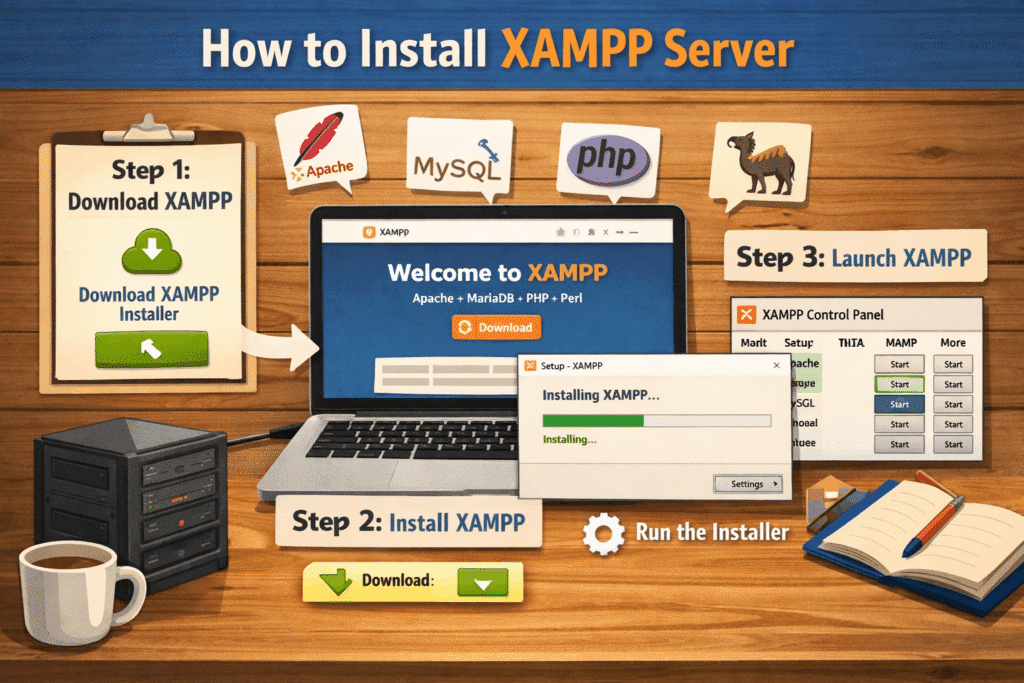
Step-by-Step WordPress Installation Using XAMPP
Step 1: Install XAMPP
1. Go to the official website of Apache Friends and download XAMPP for your Windows PC.
2. Run the installer and install it with Apache, MySQL, PHP, and phpMyAdmin.
3. Open XAMPP Control Panel.
4. Start the Apache and MySQL modules.
Tip: If you see any port error, you can change the port settings easily.
Step 2: Create MySQL Database
1. Open your browser and type: ‘http://localhost/phpmyadmin’
2. Click on Databases.
3. Enter a database name like ‘digitrainee_db’ and click Create.
Step 3: Download and Configure WordPress
1. Download the latest WordPress from wordpress.org.
2. Extract the zip file.
3. Copy the extracted “WordPress” folder to ‘C:\xampp\htdocs\'(you can rename the folder if you want).
4. Rename the file ‘wp-config-sample.php’ to ‘wp-config.php’.
5. Open ‘wp-config.php’ and update these details:
php
define(‘DB_NAME’, ‘wordpress_db’);
define(‘DB_USER’, ‘root’);
define(‘DB_PASSWORD’, ”);
define(‘DB_HOST’, ‘localhost’);
Step 4: Complete the WordPress Setup
1. Open your browser and go to:
‘http://localhost/wordpress’
2. Fill in your Site Title, Username, Password, and Email.
3. Click Install WordPress.
Congratulations! Your local WordPress website is now ready. You can start building and testing your site.
Want to Learn Visually? Watch Our Video Tutorial
For a clearer and more detailed explanation, watch our complete video tutorial. We show every single step on screen so you don’t get confused.